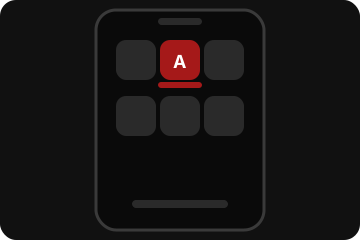
Get the app
Put Adrenaline on your home screen
Workouts, check-in, and your account — one tap, no browser bar. Takes about a minute.
iPhone
Must use Safari. Chrome or Firefox on iPhone won't show Add to Home Screen the same way.
- 1
Open this page in Safari
Chrome, Firefox, Instagram, and other apps on iPhone can't add it the same way. If you got here from a text, tap the link, then open it in Safari.
- 2
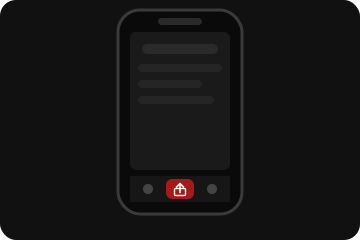
Tap Share
The square with the arrow pointing up — at the bottom of Safari (or the top on iPad).
- 3
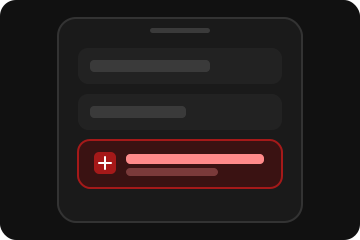
Tap Add to Home Screen, then Add
Scroll the share list if you don't see it right away. Leave the name as Adrenaline.
On iPhone, reminders only work after you open Adrenaline from that new home-screen icon — not from a Safari tab.
Android
Chrome is the easy path.
- 1
Open this page in Chrome
That's the browser that comes on most Androids. Other browsers often work too.
- 2
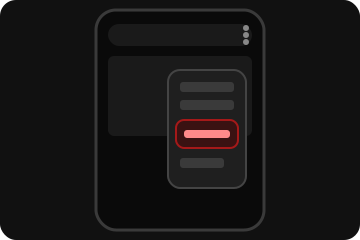
Tap the three dots, then Install app
It might say Add to Home screen instead. If you see a black Install bar at the bottom of this page, tap that — same result, fewer taps.
- 3
Confirm Install
The icon lands on your home screen, named Adrenaline.
You're done when
Your home screen has an icon named Adrenaline. Tapping it opens My Account without the browser address bar.